
In the fast-paced world of social media, Instagram Stories have become a staple for sharing fleeting moments, updates, and creative content that disappears after 24 hours. But what if you want to bring back an old story that’s been tucked away? Whether it’s a cherished memory from a vacation, a promotional post for your business, or just something funny you shared last year, knowing how to unarchive a story on Instagram can be a game-changer. As of 2026, Instagram’s interface has evolved slightly with more integrated activity management features, but the core process remains user-friendly and accessible primarily through the mobile app.
This comprehensive guide will walk you through everything you need to know about unarchiving Instagram Stories. We’ll cover the basics of what the archive is, why you might want to retrieve content from it, a detailed step-by-step tutorial, advanced tips, troubleshooting common issues, and best practices to optimize your Instagram experience. By the end, you’ll be equipped to manage your archived content like a pro, ensuring your stories continue to engage your audience or preserve personal memories. If you’re searching for “how to unarchive Instagram story” or “retrieve archived stories on Instagram,” you’ve come to the right place. Let’s dive in!

Understanding Instagram’s Story Archive Feature
Instagram introduced Stories in 2016 as a response to Snapchat’s popularity, allowing users to post photos and videos that vanish after a day. However, to address the ephemerality issue, the platform rolled out the Archive feature in 2017. This automatically saves your expired Stories to a private section only visible to you, preventing permanent loss while maintaining the temporary nature of the format.
The Story Archive acts as a digital scrapbook. Every Story you post—be it a boomerang, poll, or video—gets archived after 24 hours unless you manually delete it beforehand. You can access this archive to reminisce, download content to your device, or repurpose it. In 2026, with Instagram’s emphasis on user privacy and data control under Meta’s ecosystem, the archive integrates seamlessly with “Your Activity” hub, which also handles posts, reels, and deleted content.
Key differences between archiving and deleting: Archiving hides the Story from public view but keeps it accessible for you. Deleting sends it to the “Recently Deleted” folder for 30 days before permanent removal. Archiving is automatic by default (you can toggle this in settings), making it a safety net for content creators who post frequently. For businesses, this feature is invaluable for reusing evergreen content in marketing campaigns without starting from scratch.
Privacy is paramount here. Archived Stories are not visible to followers unless you choose to unarchive or repost them. This aligns with Instagram’s ongoing updates to give users more control, such as enhanced data download options and AI-driven content suggestions introduced in recent years. If you’re managing multiple accounts, each has its own independent archive, ensuring separation between personal and professional content.
In essence, the archive empowers users to curate their digital legacy. Whether you’re a casual user capturing daily life or an influencer building a brand, understanding this feature unlocks new ways to engage with your past content.
Why Unarchive an Instagram Story?
There are numerous reasons to unarchive a Story on Instagram. Perhaps you accidentally archived a fresh post mid-day and want it back in your active Stories. Or maybe you’re nostalgic and wish to reshare an old memory with friends. For content creators, unarchiving allows repurposing high-engagement Stories—think throwback Thursdays or anniversary posts—that can boost interaction rates.
Businesses benefit immensely too. If a promotional Story performed well but expired, unarchiving and reposting it can extend its reach without recreating it. In 2026, with Instagram’s algorithm favoring consistent posting, retrieving archived content helps maintain momentum. Additionally, unarchiving facilitates adding Stories to Highlights, those circular icons on your profile that keep select content permanently visible. This is crucial for evergreen topics like tutorials, product showcases, or FAQs.
On a personal level, unarchiving preserves sentimental value. Life events like birthdays or travels captured in Stories can be revived for sharing in group chats or as posts. However, remember that reposted Stories reset their 24-hour timer and view counts, so they’re treated as new content. This feature also aids in content auditing: Review archived Stories to analyze what resonated with your audience and refine future strategies.
Ultimately, unarchiving enhances flexibility, turning temporary content into a reusable asset while keeping your profile dynamic and engaging.

Step-by-Step Guide: How to Unarchive a Story on Instagram
Unarchiving a Story isn’t about “removing” it from the archive but rather making it visible again by reposting, adding to Highlights, or sharing as a post. Instagram doesn’t have a direct “unarchive” button; instead, you access the archive and choose how to restore visibility. This process is app-centric, as the web version has limited Story management. Here’s how to do it on mobile devices (iOS and Android), updated for 2026.
Step 1: Open the Instagram App and Navigate to Your Profile
Launch the Instagram app on your smartphone. Tap the profile icon in the bottom-right corner to go to your profile page. This is your hub for all personal content management.
Step 2: Access the Menu and Find the Archive
In the top-right corner of your profile, tap the three horizontal lines (hamburger menu). Scroll down and select “Your activity.” Within this section, tap “Archived” to enter the archive area. If it’s your first time, Instagram might prompt you with a brief intro.

Step 3: Switch to Stories Archive
At the top of the archive screen, you’ll see tabs for “Stories,” “Posts,” and “Live.” Tap “Stories” to view your archived Stories. They’re organized chronologically, with the most recent at the top. You can scroll or use the calendar view to jump to specific dates.
Step 4: Select the Story You Want to Unarchive
Browse through your archives and tap the Story you wish to restore. It will open in full-screen mode, just like when it was active.
Step 5: Choose How to Make It Visible Again
Tap the three dots (ellipsis) in the bottom-right corner. Options include:
- Share to Story: This reposts it as a new active Story, visible to followers for another 24 hours.
- Add to Highlights: Create or add to an existing Highlight on your profile for permanent visibility.
- Share as Post: Convert the Story to a grid post on your feed.
- Download: Save to your camera roll for external use, then repost manually if needed.
Select your preferred option. For example, choosing “Share to Story” will add stickers like “From Archive” automatically, which you can remove or customize.

For Recently Deleted Stories (If Applicable)
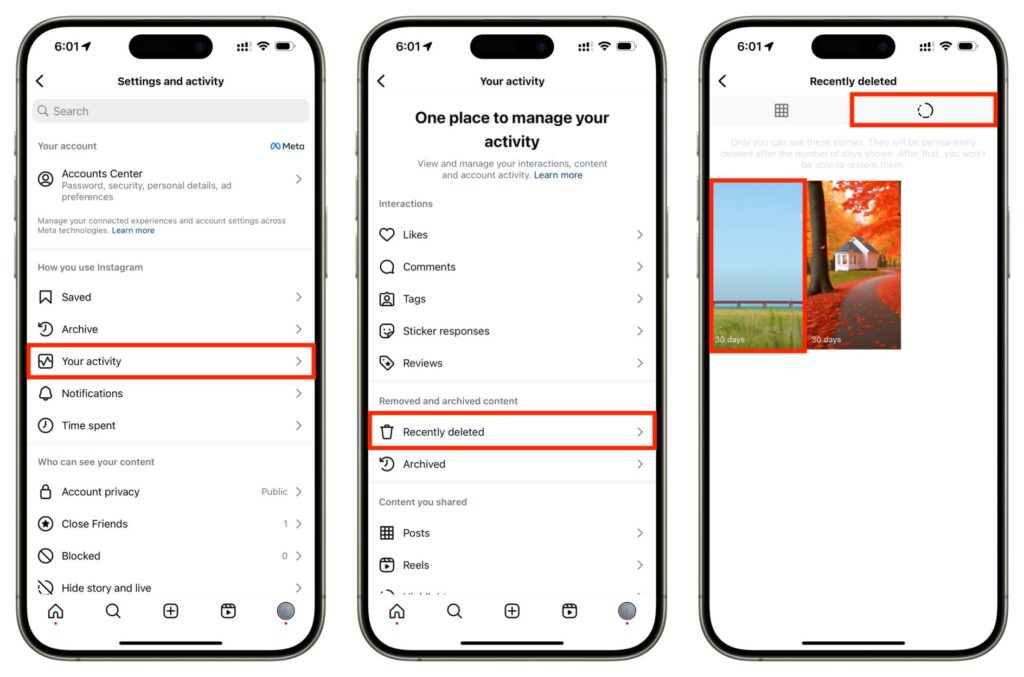
If you deleted a Story instead of archiving it, go to “Your activity” > “Recently deleted.” Stories here can be restored within 30 days by tapping “Restore.” This is separate from the archive but often confused.
This process works identically on iOS and Android. On desktop (instagram.com), you can view archives but not unarchive—use the app for full functionality. If you’re using an older version, update the app for the latest interface tweaks.
The entire process takes under a minute once you’re familiar. Practice with an old Story to avoid mistakes on important content.
likefy.com
Advanced Tips for Managing Your Instagram Archives
To take your archive management to the next level, enable auto-save in settings (Profile > Menu > Settings > Story > Save story to archive) if it’s off. Use the search function in archives to find Stories by keywords or locations.
For bulk actions, Instagram allows selecting multiple Stories to download or delete, but not mass unarchiving—handle one at a time. Integrate with Highlights strategically: Categorize like “Travel,” “Food,” or “Work” to organize unarchived content. Businesses can use third-party tools (with caution) for scheduling reposts from archives, but stick to official features for security.
In 2026, AI enhancements in Instagram suggest relevant archived Stories for reposting based on trends—tap into this for timely content revival. Regularly clean your archive to avoid clutter: Delete irrelevant items to keep it focused on valuable memories.
Common Issues and Troubleshooting
Can’t find the archive? Ensure your app is updated and you’re logged into the correct account. If Stories aren’t archiving automatically, check settings. No “Share” option? The Story might be too old or corrupted—try downloading and reuploading.
If the app crashes during unarchiving, clear cache or reinstall. For private accounts, unarchived Stories respect your privacy settings. If issues persist, contact Instagram support via the app.

Best Practices for Instagram Stories This Year
Optimize Stories with engaging elements like polls and questions to encourage interaction before they archive. Use analytics (for business accounts) to identify top-performing Stories worth unarchiving. Balance frequency: Don’t flood followers with reposts—space them out.
Prioritize high-quality visuals and captions for better engagement post-unarchive. Stay updated with Instagram’s features, like collaborative Stories, to enhance revived content.
Conclusion
Mastering how to unarchive a Story on Instagram opens up a world of possibilities for personal and professional use. From reliving memories to boosting engagement, this feature ensures your content lives beyond 24 hours. Follow the steps outlined, experiment with Highlights, and troubleshoot as needed. With these tools, your Instagram presence will be more dynamic than ever. Ready to dive into your archives? Open the app and start exploring today.